KrispyGauge runs its own WiFi hotspot. Join it from your phone or laptop and you can set everything up from a web browser — no app needed. If it isn't connecting, the fixes below solve almost every case.
How to connect
- Turn on the ignition.
- Join the WiFi network
Krispy_XXXX— the password isGetKrispy. - Open
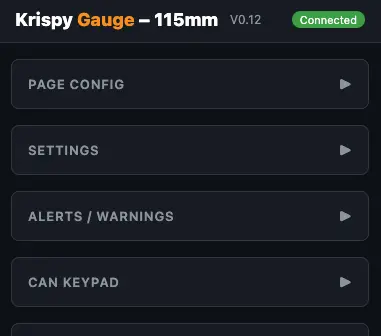
http://4.3.2.1in your browser. - Once connected, the page shows Connected on the right-hand side.
The full network name is shown on the gauge at boot, or under Menu → Info. You can change the network name and password in the Web UI if you like.
Can't see the network?
Check WiFi is on at the gauge. If you've turned off Auto-Enable WiFi (which we recommend once you're set up), the hotspot won't start by itself. Turn it on from the gauge: Menu → WiFi → Enable.
Your car stereo may have taken over your phone. This is the big one. Wireless CarPlay and Android Auto both use your phone's WiFi, and they connect over Bluetooth the moment you sit in the car — so your phone connects to the stereo and won't stay on the gauge.
The fix: turn Bluetooth off on your phone before connecting, or unplug the USB cable if you use wired CarPlay. Turn it back on when you're done.
Keep the ignition on. The gauge runs on switched 12V, so when the ignition goes off, so does the hotspot.
Running two gauges? Each has its own Krispy_XXXX name. Check the one on screen matches the one you're joining.
Connected, but the page won't load?
You've probably dropped off the network. The gauge's WiFi has no internet, and phones quietly leave networks that don't. If your phone asks "this network has no internet, stay connected?", tap Yes or Keep. Then check your WiFi settings still show Krispy_XXXX, not your home or workshop network.
Turn off mobile data. Android especially will send your browser out over mobile data as soon as the WiFi has no internet, and the request never reaches the gauge.
Type the address in full: http://4.3.2.1. Without the http://, most browsers search for it or try HTTPS instead. The Web UI doesn't use HTTPS.
Turn off any VPN, and on iPhone turn off iCloud Private Relay. Both send your traffic away from the gauge.
Try a different browser. Chrome and Firefox are the safest bets. If a sign-in page pops up by itself, close it and type the address in manually.
Still stuck? Forget the network in your WiFi settings, join it again, and retry. If that doesn't work, email [email protected].
One last tip
Once you've finished setting up, turn off Auto-Enable WiFi. The gauge performs better with WiFi off, and nobody nearby can change your settings. It's two taps to turn back on when you need it.