VRacer is a lap timing and data logging app for iPhone and Android, built for track days, club racing, karting and motorcycles. Pair it with a KrispyGauge and your lap times come with live engine data — RPM, boost, temperatures and more — streamed straight from your ECU over Bluetooth. No extra hardware, no dongles, no extra wiring.
What you get
- Lap times and sector splits from your phone's GPS, with more than 1,600 tracks preloaded.
- Live engine data alongside every lap: whatever the gauge reads from your ECU, such as RPM, boost, oil and coolant temperature, throttle position and lambda.
- Analysis tools in VRacer, including lap comparisons, speed traces and video overlays with your data on screen.
While the gauge shows your readings on the dash, it sends the same data to VRacer at the same time. More on the integration is on the KrispyGauge × VRacer page.
Set up the gauge
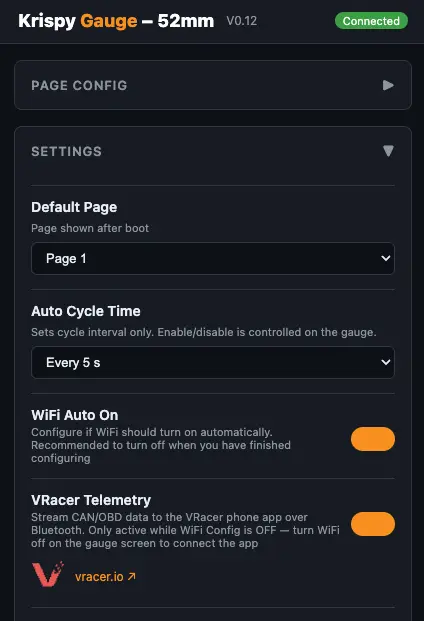
1. Turn on VRacer telemetry
Connect to the gauge's Web UI, go to Settings → VRacer Telemetry and turn the toggle on.
2. Start VRacer on the gauge
Disconnect your phone from the gauge's WiFi. On the gauge, swipe open the main menu and tap the VRacer button. It glows red, and the WiFi icon turns off.
Set up the VRacer app
3. Install VRacer
Download VRacer for iPhone (App Store) or Android (Google Play), and create an account if it asks.
4. Add the gauge as a data source
In VRacer, open Settings and tap CAN/OBD2 Data Receiver.
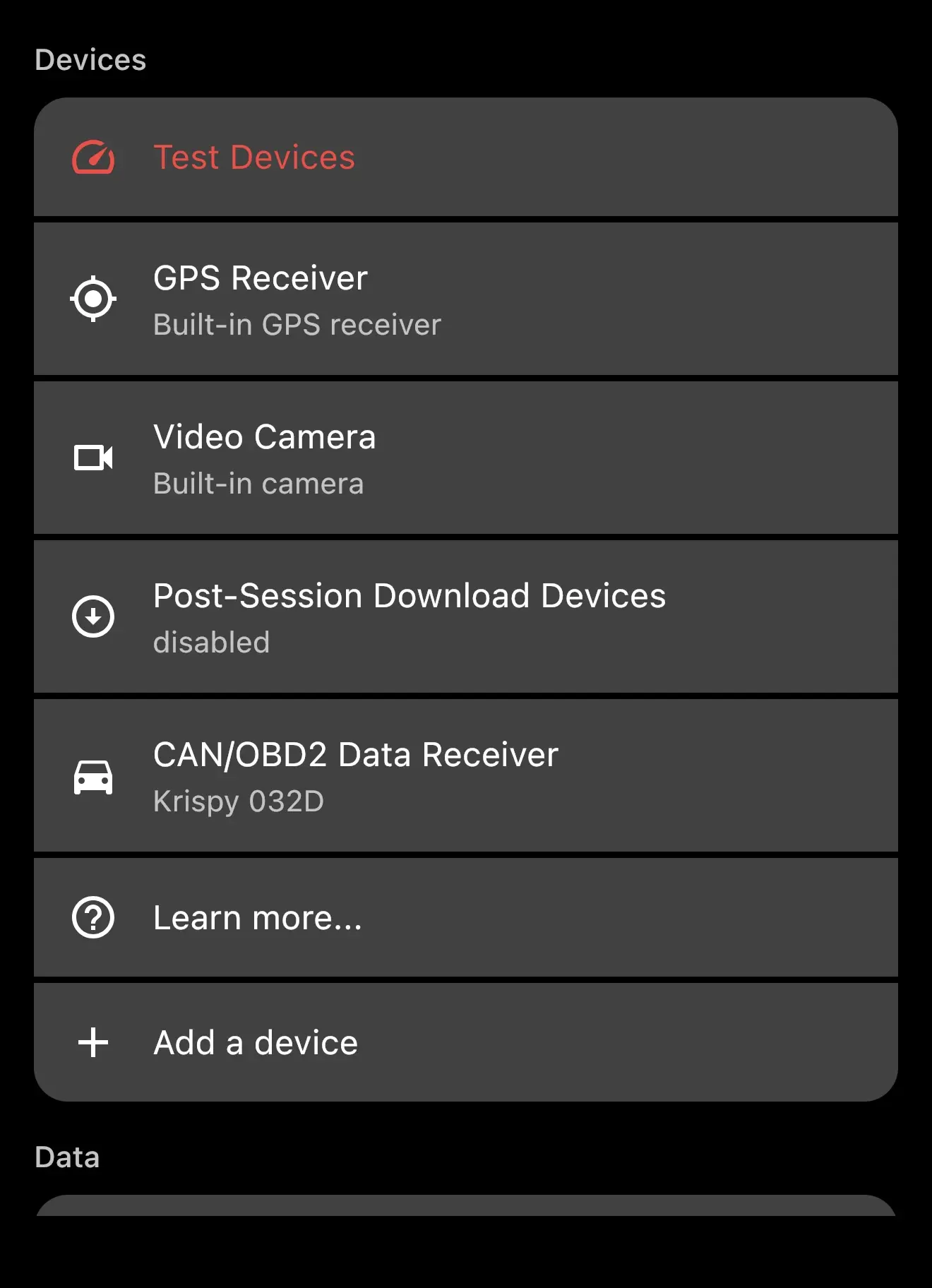
Tap Add a Device.
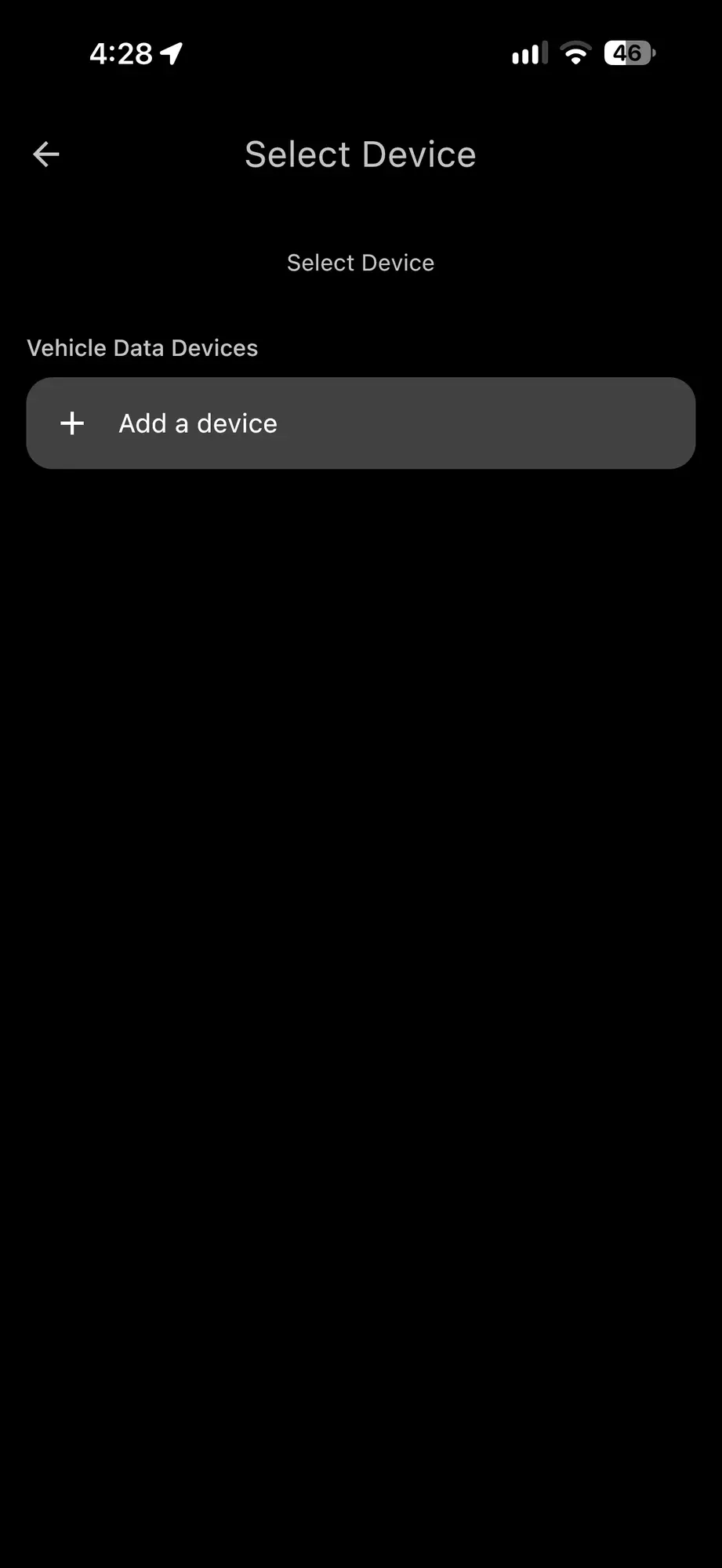
Then choose Krispy Gauge.
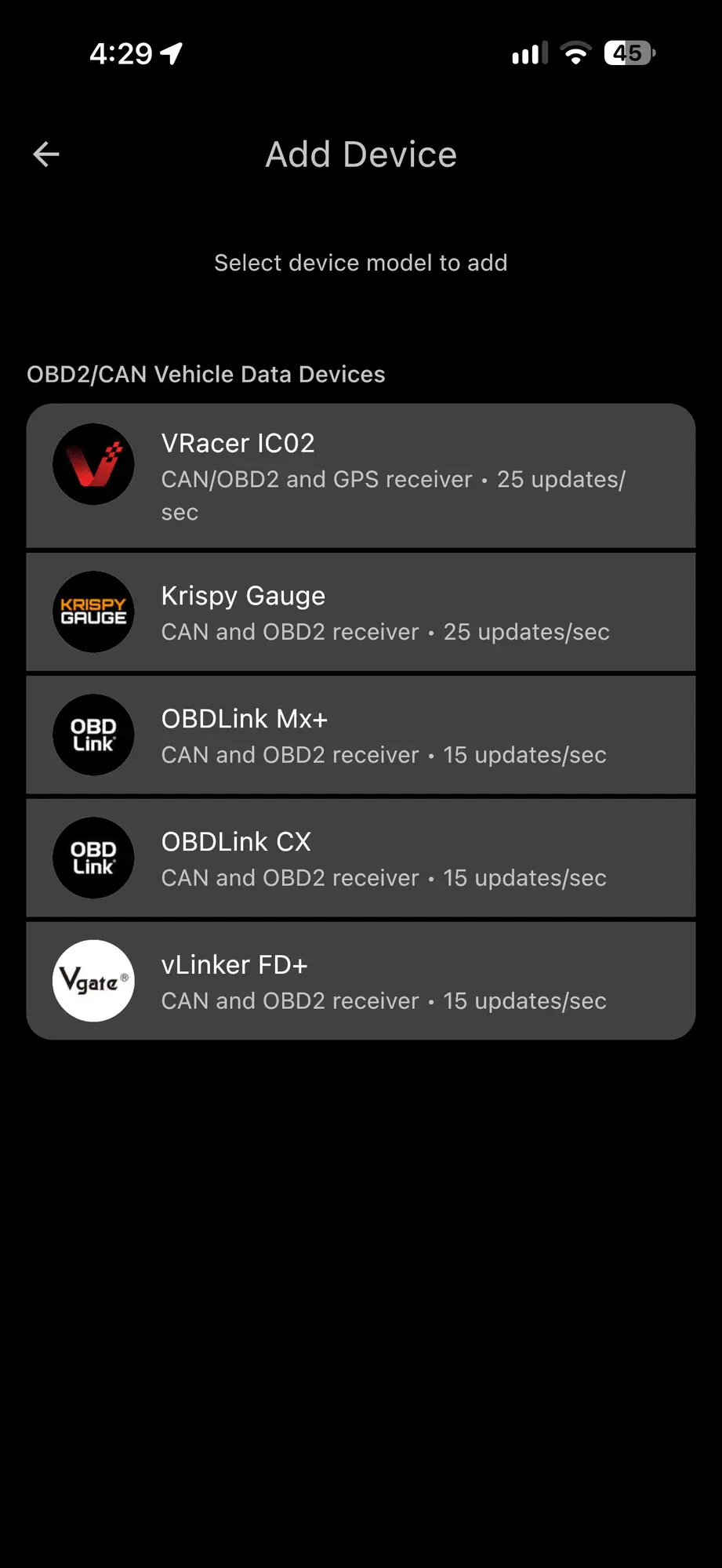
5. Pick your gauge
VRacer scans for your KrispyGauge. Tap it when it appears — its name matches the gauge's default WiFi name.
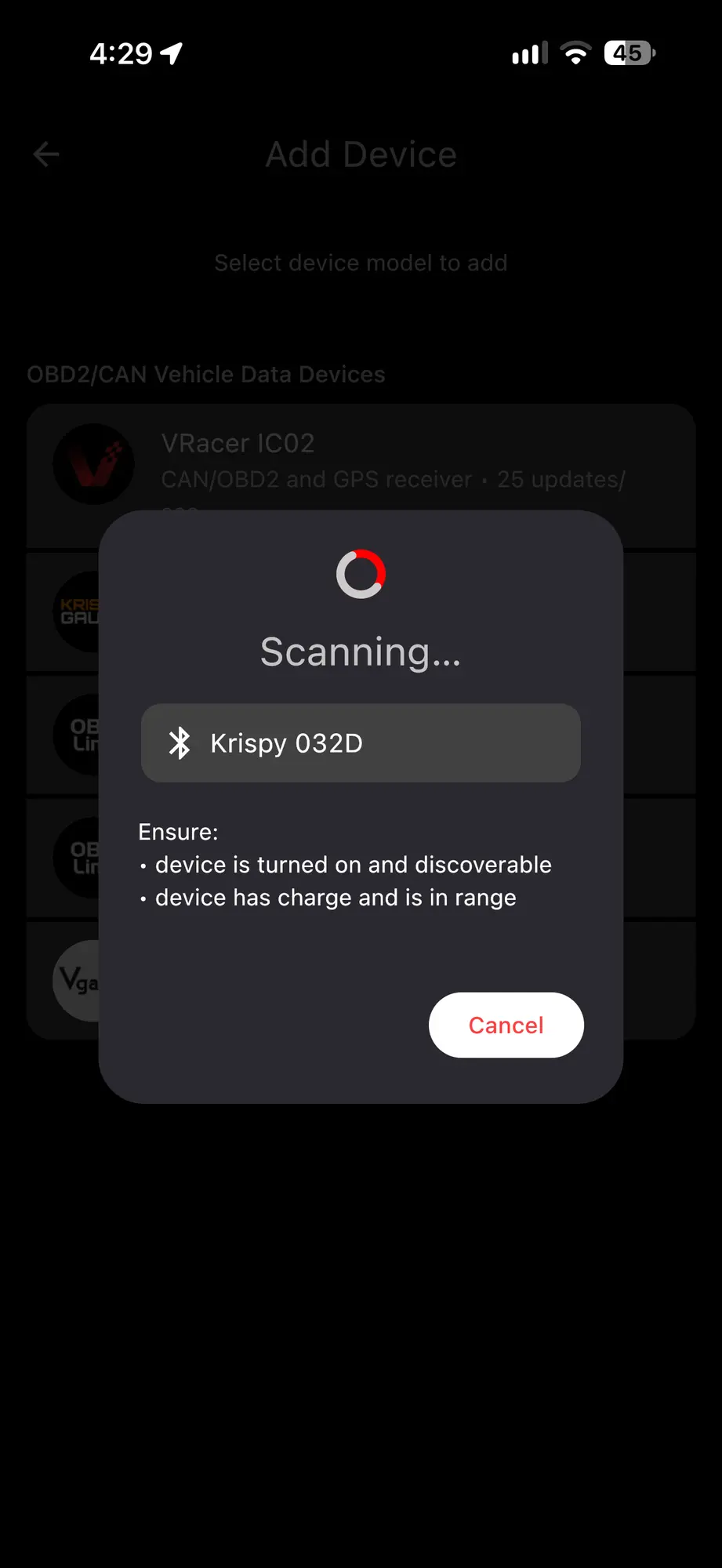
That's it — VRacer now receives your engine data alongside every lap.
WiFi and Bluetooth take turns
KrispyGauge uses one radio for both WiFi and Bluetooth, so VRacer telemetry only runs while WiFi is off. Whenever WiFi is off, telemetry streams by itself; turn WiFi on to use the Web UI, and telemetry picks up again as soon as WiFi goes off.
If Auto-Enable WiFi is on, the gauge starts with WiFi every time, so you'd have to tap VRacer on the gauge after each start. For track days, we recommend turning Auto-Enable WiFi off.
VRacer can't find the gauge?
- Check VRacer Telemetry is turned on in the Web UI settings.
- Check the VRacer button on the gauge's menu is on and glowing red.
- Make sure your phone has Bluetooth on and has disconnected from the gauge's WiFi.