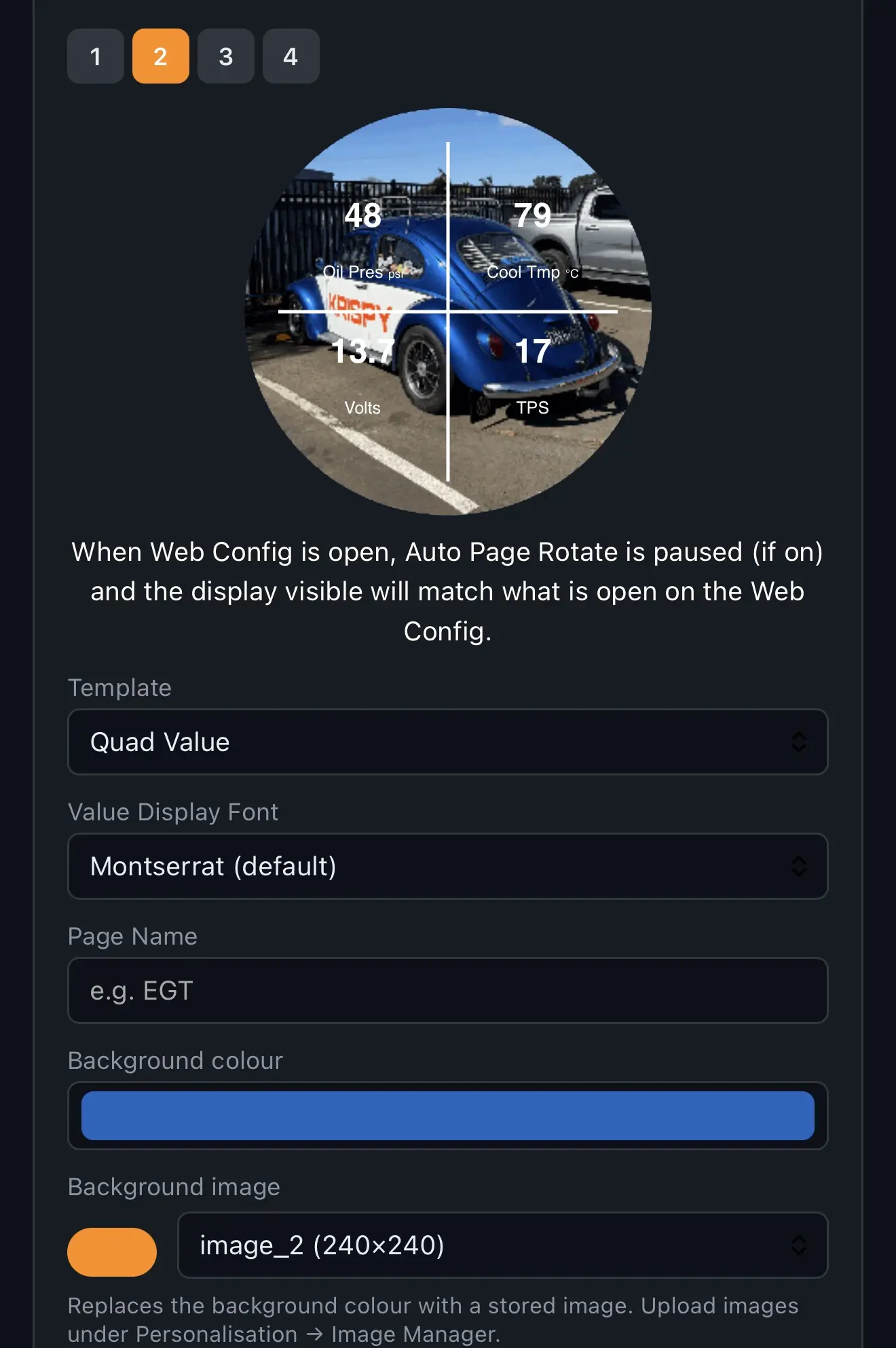
Make your KrispyGauge your own with a photo or logo — as the background behind a gauge face, or as a splash screen when the gauge starts up. Everything is done from the Web UI on your phone or laptop, and takes a couple of minutes.
Upload your image
1. Connect to the gauge
Join the gauge's WiFi network and open http://4.3.2.1 in your browser. If you haven't done this before, see connecting to the Web UI.
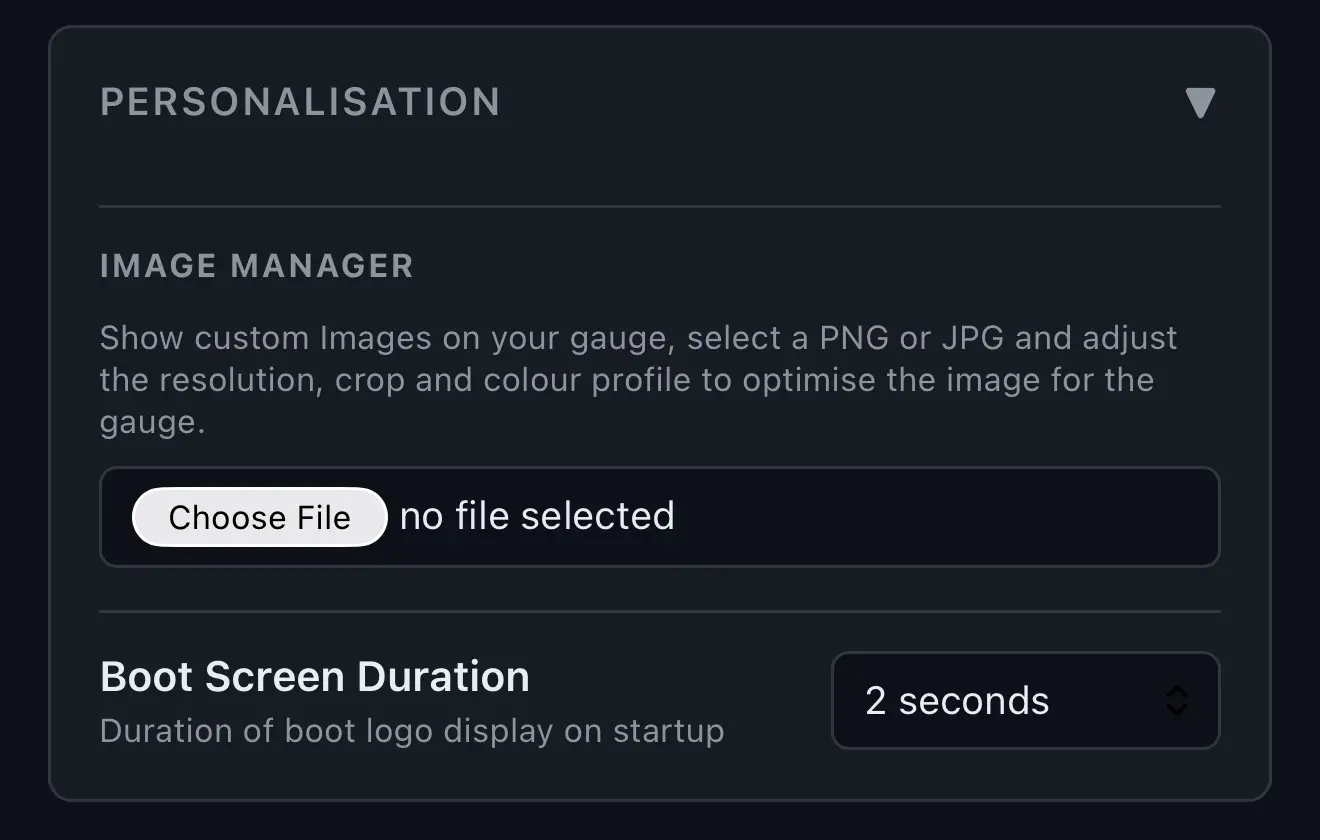
2. Choose your image
Click Choose File and pick an image from your camera roll or your computer.
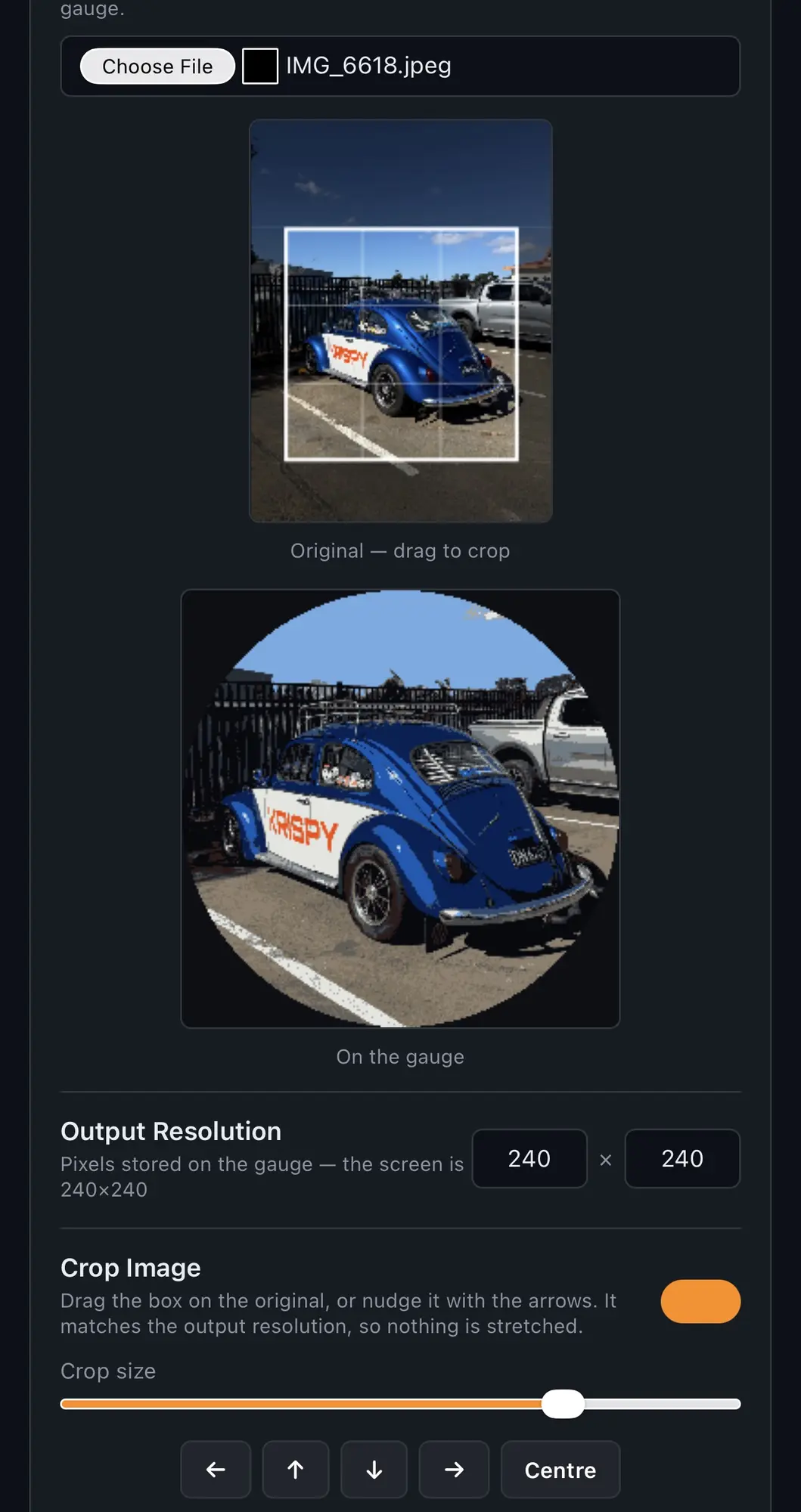
3. Position, scale and crop
Move, resize and crop the image until it sits the way you want it on the round screen.
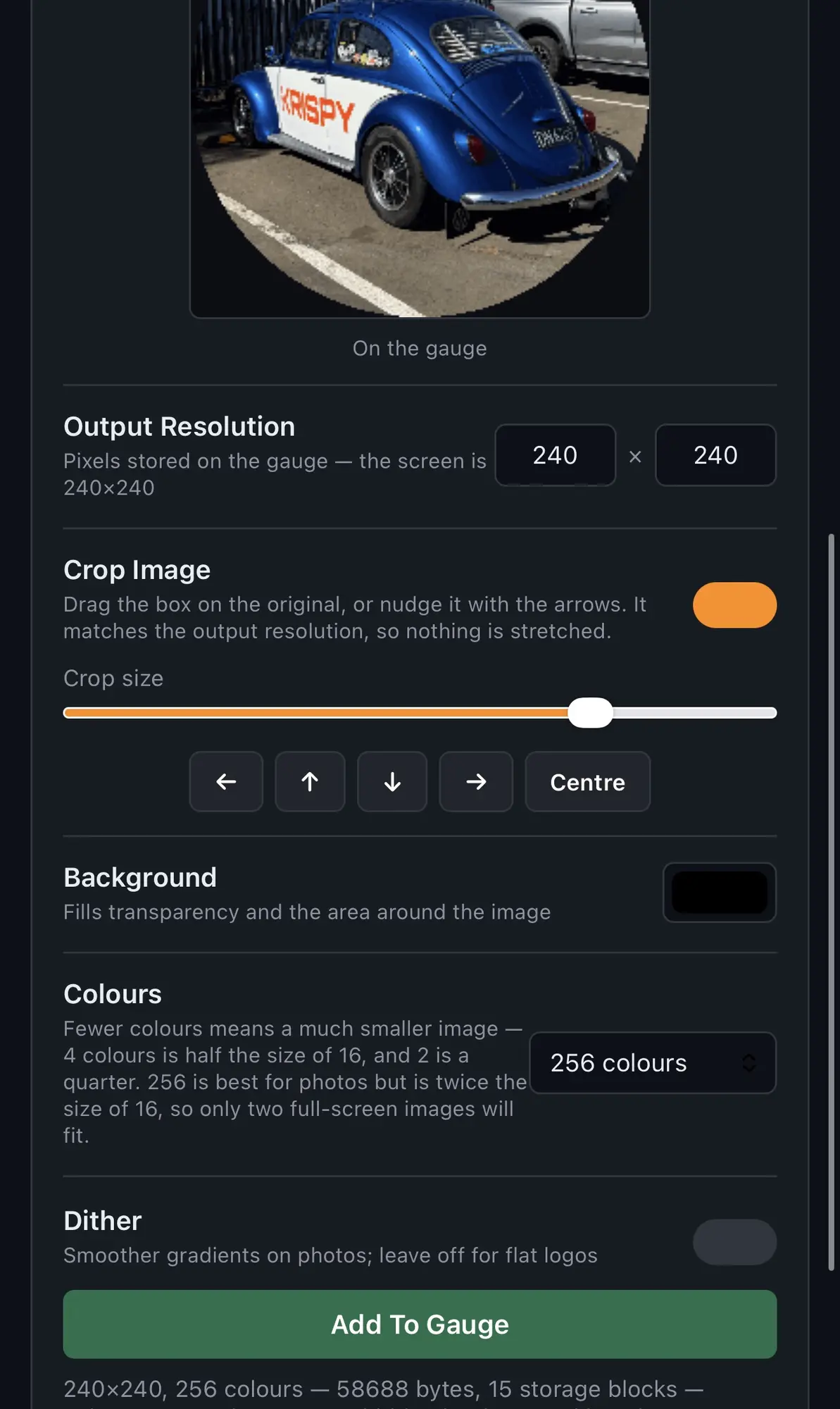
4. Choose the colours and upload
Set the colours to 16 or 256 depending on how much detail the image has — 256 suits photos, 16 is often enough for a simple logo. Try toggling dither too if you'd like a different look.
When you're happy, click Add to Gauge. Uploading takes 5–20 seconds depending on the image size and settings. Some models of KrispyGauge may show a black screen or flash while it uploads — that's normal.
Use it as a splash screen
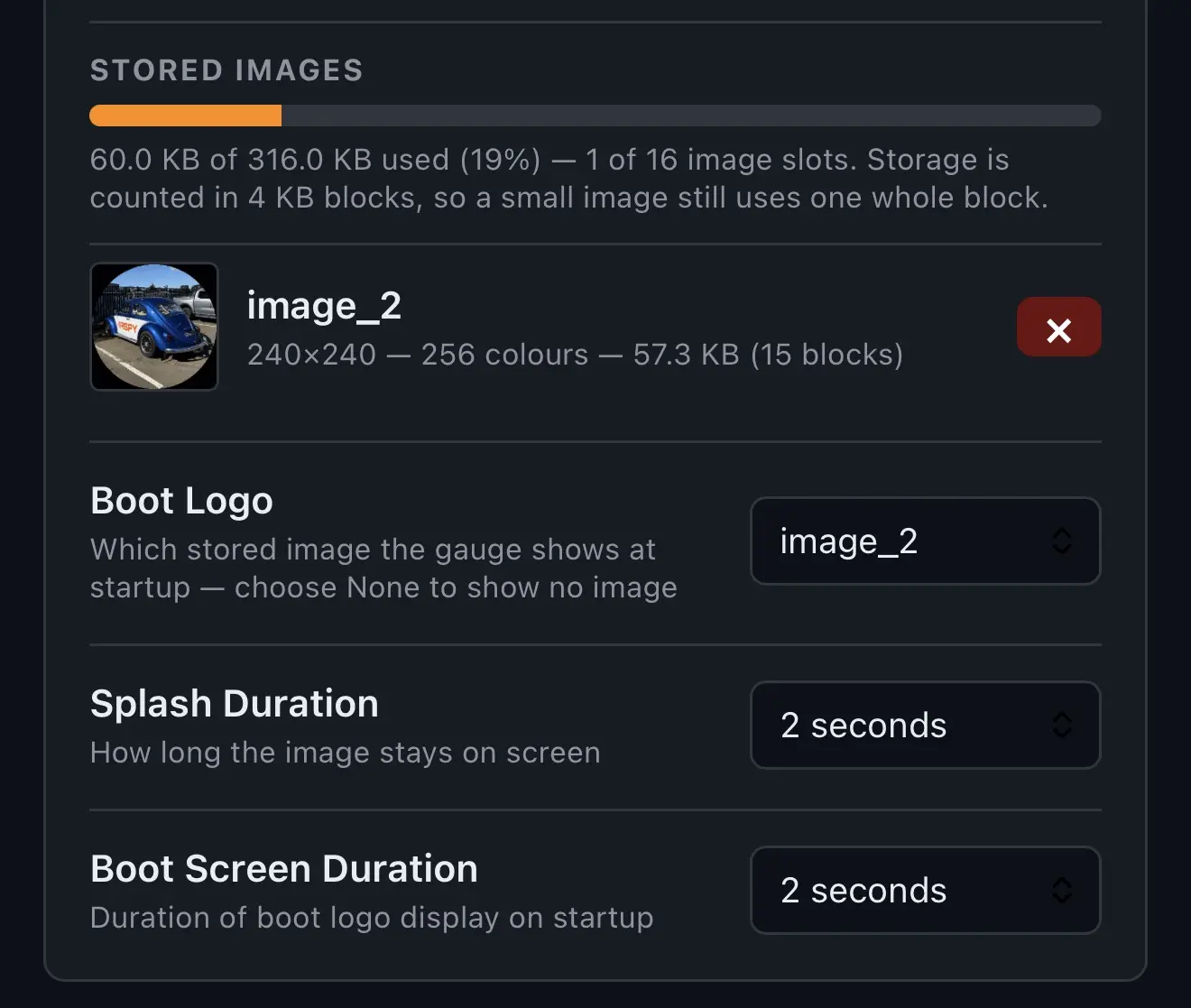
Your uploaded images are listed along with how much storage they use. From here you can turn an image on as the splash screen shown when the gauge starts, and set how long it stays on screen.
Use it as a gauge background
Go to Page Config and choose the image as the background for a gauge face. The preview in the Web UI may be lower resolution than what the gauge actually shows.